Mile32 is a native iOS training dashboard for serious runners. Sync your runs from Apple Health, visualise your fitness load, track your recovery, and build towards your A-race — everything stays on your device, no account required.
Generate a structured plan from your starting long-run distance, peak week target, and race date. Phases are assigned automatically — and you can reschedule the entire plan at any time, preserving everything you've already completed.
Plan your distance progression and track it against what you actually ran. The Bulk Plan Editor lets you update all upcoming weeks — distances and phase labels — in a single screen. Completed runs remove themselves from the plan automatically.
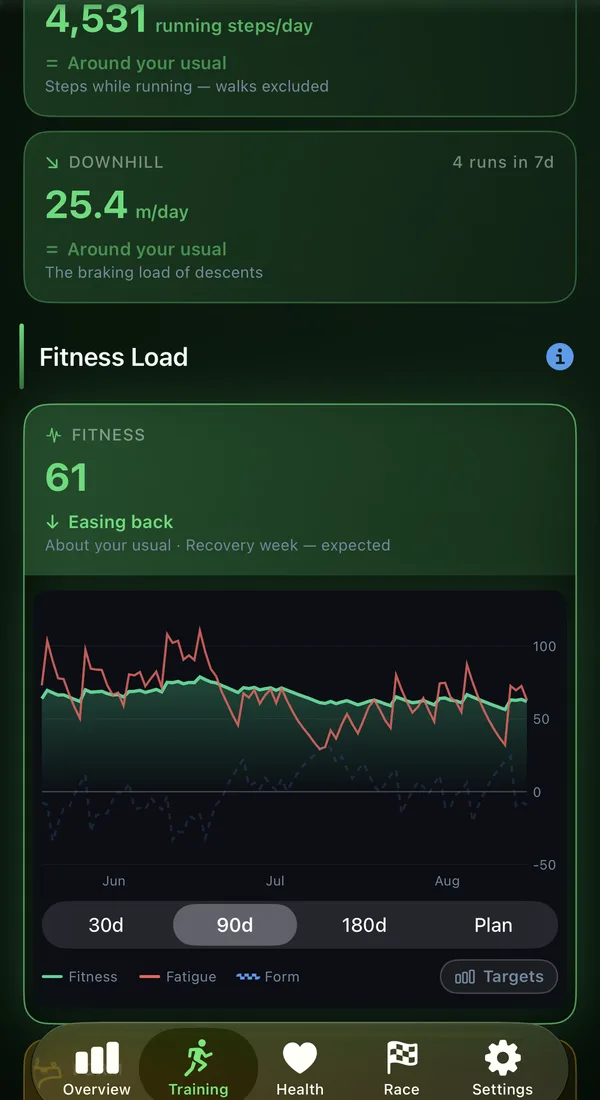
Your Fitness, Fatigue, and Form — plotted as a 90-day chart on the Training tab. The Fitness tile changes colour to show whether you're building, holding, or fading, and your Form score tells you at a glance whether you're ready to race or carrying too much load.
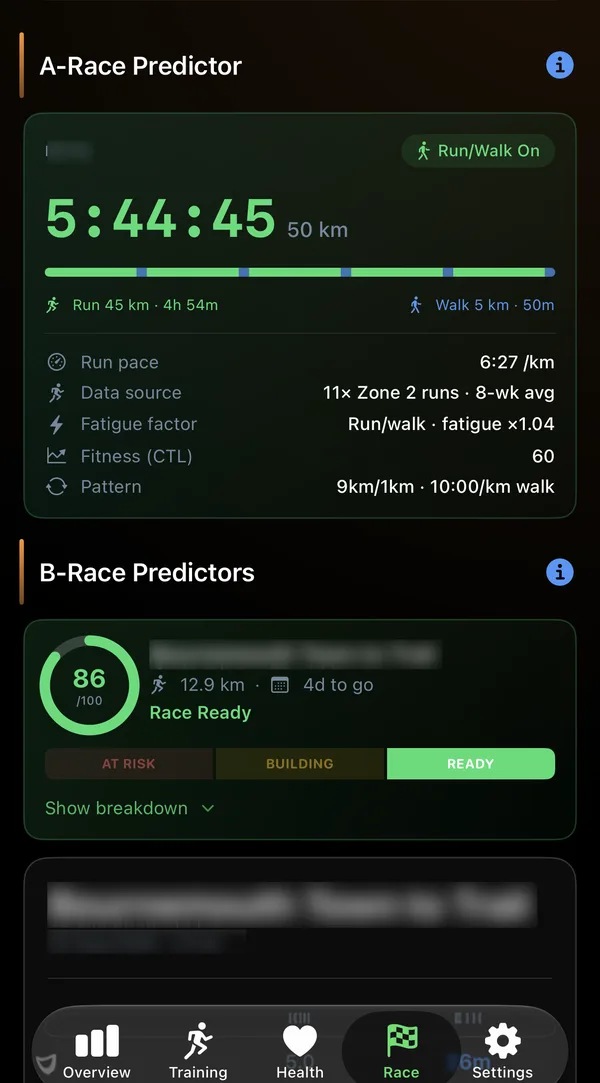
Predicts finish time for distances from marathon to 150+ km using your recent Zone 2 run data and fatigue multipliers calibrated per distance. Add an optional run/walk strategy to model a race-day execution plan.
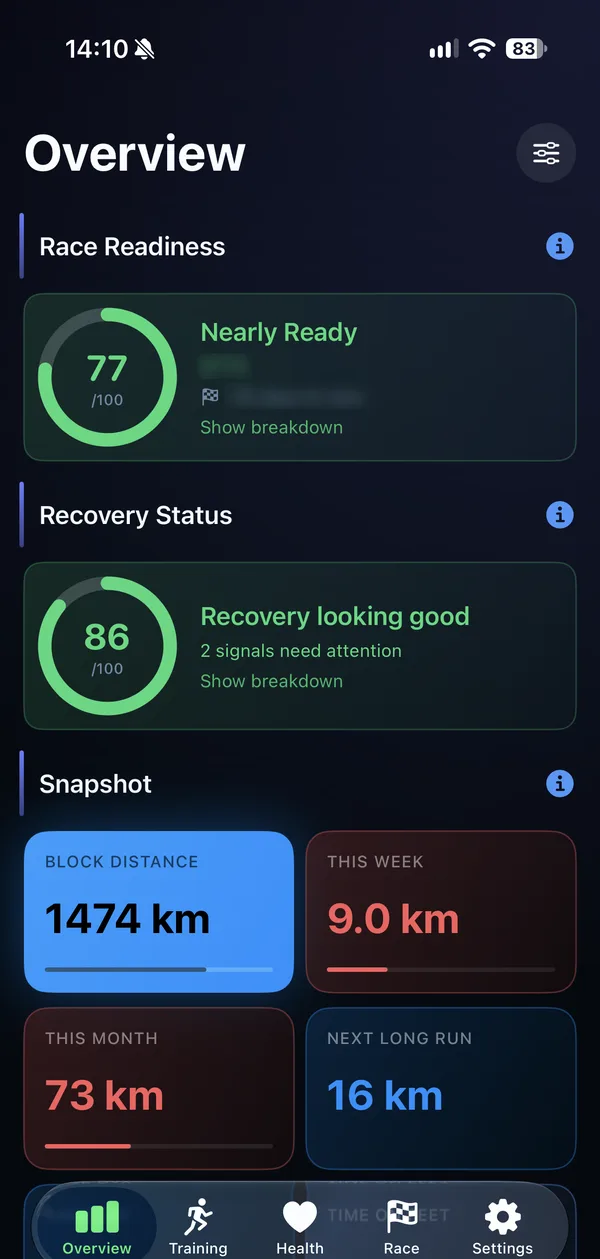
A live composite score drawing on fitness, form, HRV trend, long-run consistency, and race proximity. Labels range from Early Training through to Race Ready — with a per-component breakdown so you always know where you stand.
Continuous training load analysis that surfaces risk before it becomes injury. Mile32 watches for the patterns that precede overuse — sudden load spikes, cumulative fatigue, and high-intensity density — and gives you a clear low / moderate / high signal to act on.
Stay ahead of fatigue with smart alerts when your recovery metrics dip. Mile32 monitors resting HR and HRV trends and flags early warning signs — giving you time to back off before a hard block becomes a problem.
Live queries for resting heart rate, HRV, sleep, active calories, wrist temperature, and weight. The Health tab updates automatically — no export needed.
Log every race — upcoming, entered, or completed — in a dedicated Race Diary. The Race Day Card lays out your full checkpoint plan with target times, ETAs, and cut-offs in one clear view.
A guided race-week checklist organised into four phases: 2 Weeks Out, Race Week, Day Before, and Race Morning. The right items surface at the right time — and a glanceable status on the Overview tab keeps you on top of everything in the final fortnight.
Set weekly, monthly, and yearly distance targets. Each goal shows distance achieved vs target at all times — with coloured status indicators for at-a-glance readiness.
Full run history on the Runs tab with four filter modes: All (with a configurable display cap), Long Runs (adjustable minimum distance), 20+ km efforts, and vs Plan — showing each completed week's actual distance and pace against your target.
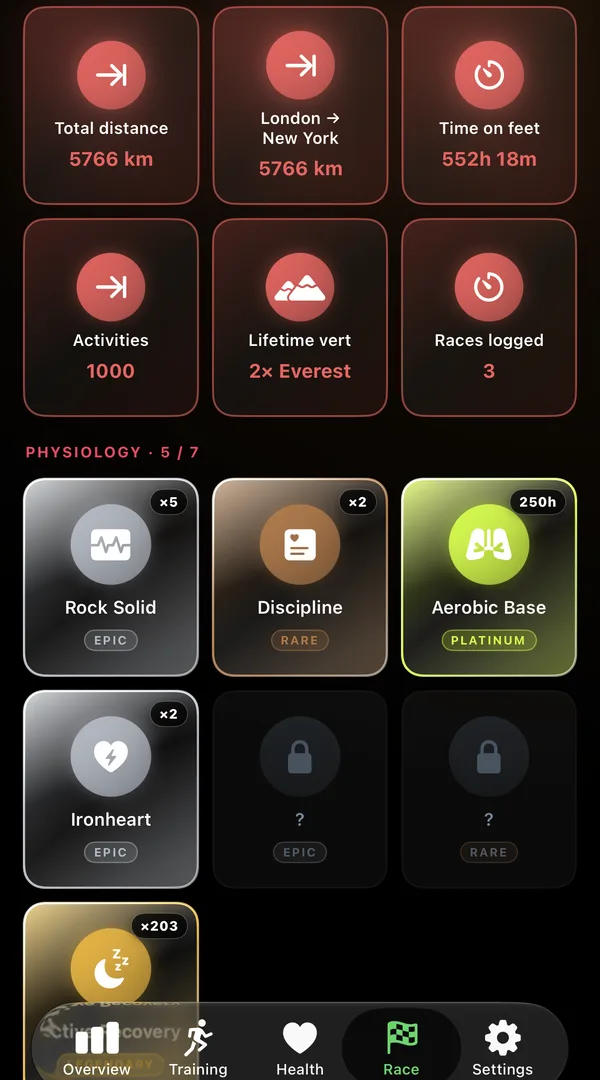
Personal bests across 29 distance categories (5 km through 100 km, imperial equivalents, and ultras), plus auto-detected milestones covering Distance, Vertical, Consistency, and Race — all surfaced on the Overview tab.
A structured pre-race kit checklist organised into collapsible sections. Export a beautifully formatted full checklist in the app's dark style — ready to screenshot and share before race morning.
Two widgets, each available in small and medium. The distance widget shows this week's km vs target and your next long run as a proportion of your race distance. The elevation widget tracks weekly and monthly vertical gain against your targets — turning green when you hit your monthly goal. Both show your days-to-race countdown.
Long-press any run to generate a shareable card. Pick a style (Dark, Light, or Gradient), choose a crop (1:1, 4:5, or 9:16), add a photo, and the GPS route trace overlays on top. Share to social or save directly to your camera roll.
A five-screen setup flow covers app features, your race details, HR zone configuration (with Tanaka max HR suggestion from age), training targets, and HealthKit permissions — so the app is personalised from day one.
Everything runs on-device. No account, no server, no analytics. Your training data stays on your iPhone — always.
Long-press any run row in the Run History list (Runs tab) or in the vs Plan view to open the share sheet.
From there you can:
For runs recorded via Apple Watch, the GPS route is fetched from HealthKit and drawn as a green trace with start and finish markers.
Tap Share… to open the iOS share sheet, or Save to Photos to save directly to your camera roll at full resolution.
There are two ways to edit your plan:
Bulk Plan Editor — tap the ⋯ menu on the Training tab and choose Edit Plan…. This opens a scrollable table of all upcoming weeks. You can edit target distances and phase labels (Re-entry, Build, Build+, Recovery, Peak, Taper, RACE, Injury) inline. Tap Save to commit all changes at once, or Cancel to discard them. Only future, uncompleted weeks appear.
Per-week editing — tap any individual week row in the Plan view to open the week editor for that specific entry.
Mile32 syncs your workouts directly from Apple Health. If you run with Apple Watch, your activities are already there — open Mile32 and they appear automatically, including distance, pace, heart rate, elevation, and GPS route.
Any app that writes running workouts to Apple Health (Garmin Connect, Strava, Runkeeper, and others) will also sync. You can configure how far back to import in Settings → Apple Health Sync.
Mile32 requests read-only access to the following HealthKit data types:
All HealthKit data is queried directly on-device and never leaves your iPhone. You can revoke permissions at any time in Settings → Privacy & Security → Health → Mile32.
Mile32 uses the Karvonen heart rate reserve method, which accounts for your resting HR when defining zones. Configure your max HR and resting HR in Settings → HR Zones.
Default thresholds (adjustable):
Zone distribution is shown as a bar on the Overview tab and broken down in detail on the Training tab. Changes to zone boundaries in Settings apply retroactively to all synced runs.
These are the three numbers behind the Fitness Load chart on the Training tab:
All three update daily and are plotted as a 90-day chart on the Training tab.
Mile32 applies a pace filter to exclude walks and very slow activities from load calculations. Activities with an average pace slower than 9:00/km are excluded.
This threshold is configurable in Settings → Training → Pace Filter. Excluded activities are still stored and visible in your run list, but don't contribute to the Fitness Load chart, zone distribution, or weekly volume totals.
Long-press your iPhone home screen to enter jiggle mode, tap the + button, and search for Mile32. You'll find two widgets — Mile 32 (distance) and Mile 32 Elevation (vert) — each available in small and medium size.
Set your weekly targets and long run day in Settings → Training Targets — Mile32 uses these to keep the widgets current throughout the week.
Partially. The fitness load charts, long run planner, goals, race diary, and kit checklist all work without Apple Watch. Any app that writes running workouts to Apple Health will also sync.
The Health tab (RHR, HRV, sleep, wrist temperature, weight) requires an Apple Watch to have recorded those metrics into HealthKit. If no data is available for a given metric, the chart shows an empty state with a prompt to check your Apple Health permissions.
Go to Settings → Data → Clear All Data. This permanently deletes all synced runs, long run plans, and app settings from your device.
Deleting the Mile32 app from your iPhone also removes all locally stored data. HealthKit data is stored independently in Apple Health and is unaffected by either action.
Mile32 reads from Apple Health (heart rate, HRV, sleep, active energy, weight, wrist temperature, and GPS routes) to power its training intelligence. This data never leaves your device. You can revoke access at any time in Settings → Privacy & Security → Health → Mile32.
There are no analytics SDKs, no advertising frameworks, no network requests, and no account system. The app runs entirely offline.
All stored data is removed when you use Settings → Data → Clear All Data, or when the app is deleted.
Questions? support@mile32.app · Last updated May 2026.
When reporting a bug, it helps to include your iOS version, iPhone model, and a description of what you expected vs what happened. Screenshots are always welcome.
Feature requests are very welcome — Mile32 is actively developed and the roadmap is shaped by runner feedback.